

IV Therapy
The IV Therapy section is the part of a Smart Chart where you record an intravenous treatment. One section holds everything about one IV: the screening questions you ask before you start, the bag’s ingredients with their lot numbers and expiry dates, the osmolarity and drip rate that OutSmart works out for you, the details of the infusion itself, the patient’s vital signs during it, and how the patient was afterwards.
The section also connects the IV to the rest of the clinic. It loads a saved recipe or protocol so that a regular IV is not built from scratch each time, it prints a label for the bag, and when you finalize it, it takes the ingredients out of your dispensary’s stock and makes the IV a billable item in Daily Express Checkout.
This page explains how to add the section and how it is laid out. The articles listed at the bottom of the page walk through each part in detail.
Who Can Use It
The IV Therapy section is available to practitioners with an OutSmart PRO subscription. No setting needs to be turned on. Admin staff do not open Smart Charts, but they see a finalized IV in Daily Express Checkout when they bill the visit.
Adding an IV Therapy Section
The IV Therapy section belongs to the Plan part of the chart.
- Open the patient’s Smart Chart for the visit.
- In the column on the left, under Import a Template, click the green +P button. A panel slides in from the right, listing the sections you can add to the Plan.
- Under Standard, click IV Therapy.
The section is added at the end of the Plan, under the heading IV THERAPY, and its name appears in the chart’s list of sections on the left. The Start time is filled in with the time you added the section, and IV treatment recommended by shows your name.
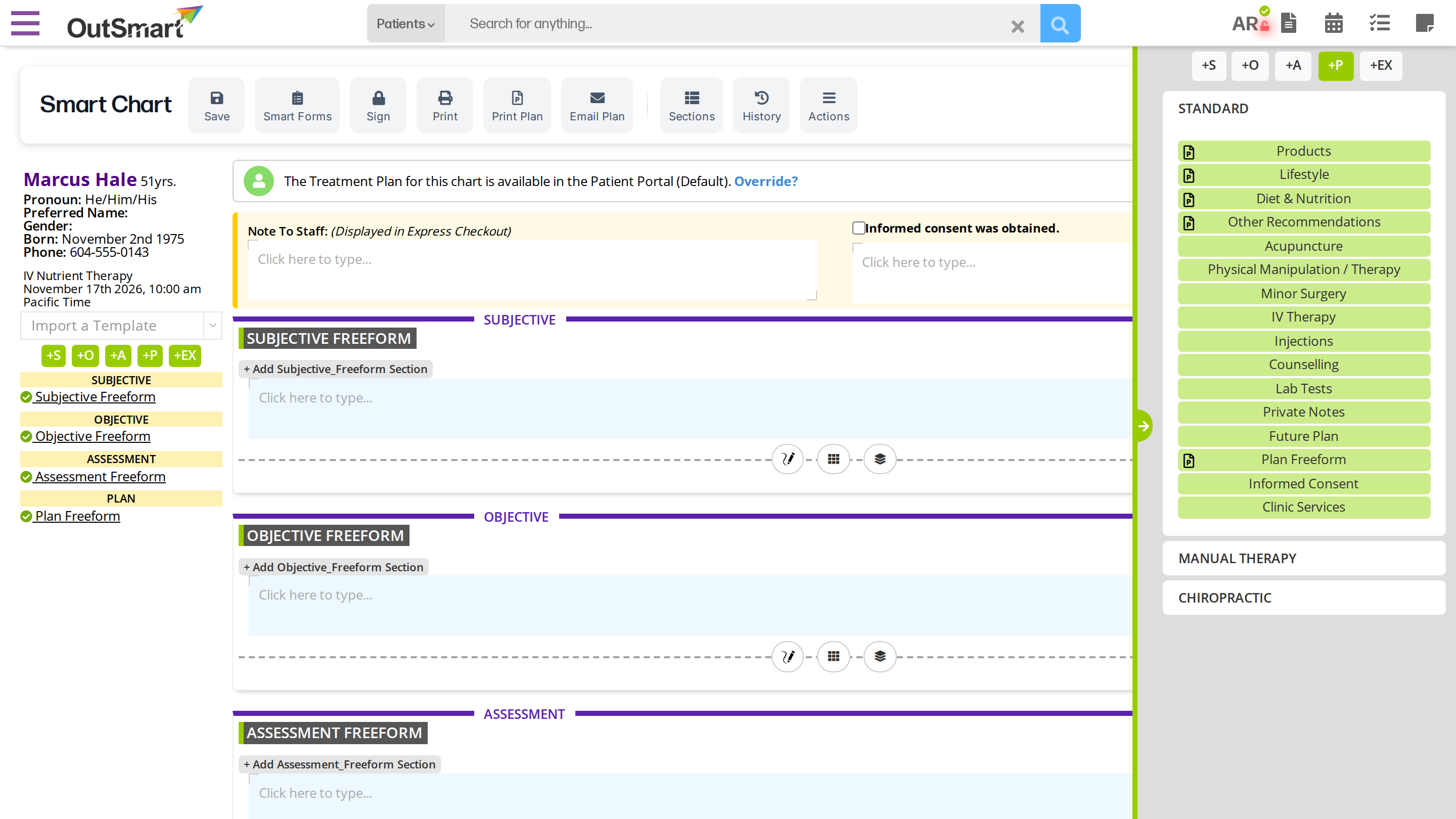
Click +P, then IV Therapy, to add the section to the Plan.
How the Section Is Laid Out
The section reads from top to bottom in the order you work through an IV.
| Part | What it holds | Article |
|---|---|---|
| The heading row | The recipe or protocol the IV is based on, the dispensary its ingredients come from, and the box for saving the whole section as a protocol | IV Protocols and Recipes |
| Screening and timing | Who recommended the IV, the pre-IV screening questions, medication details, the patient’s weight, and the start, end and duration of the infusion | Pre-IV Screening and Infusion Timing |
| IV Therapy Formulation | The substances in the bag, their lot numbers, expiry dates, amounts and osmolarity, with the totals, final osmolarity and drip rate that OutSmart works out | Building the IV Formulation |
| The buttons under the formulation | Print Bag Label, Save As New Recipe, Update Recipe and Finalize & Produce Blend | Printing an IV Bag Label and Finalizing the IV and Billing |
| The infusion | Tonicity and type of infusion, the venous access device, gauge, location, vein and cleaning solution | Documenting the Infusion |
| Vital Signs | A row of vital signs for each check during the infusion | Documenting the Infusion |
| After the infusion | The catheter flush and its status on removal, any complications, the patient’s status, and the additional notes | Documenting the Infusion |
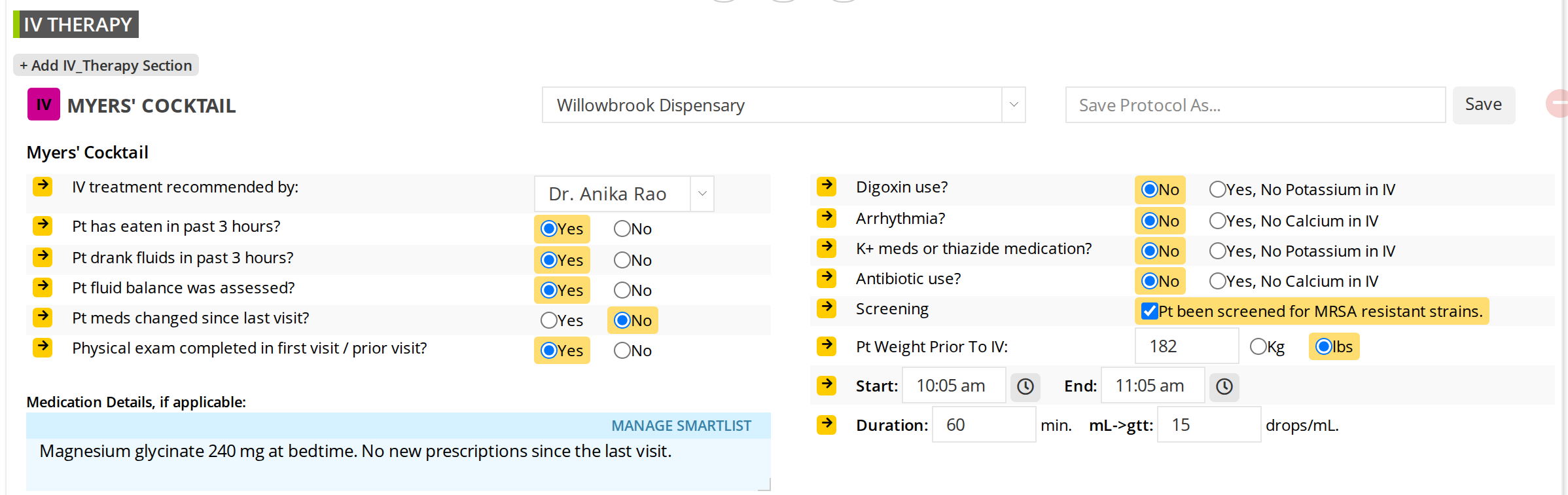
The top of a completed IV Therapy section: the heading row, the screening questions and the timing.
The chart saves itself as you work. Click Save in the toolbar at the top of the chart to save straight away.
The IV in the Patient’s Chart History
Each IV you record stays in the patient’s chart history. When you open the patient’s next chart, the IV Therapy part of the Plan shows a HISTORY bar for their earlier IVs.
- Click the arrow at the right end of the bar to open it. A picker at the top lists each earlier IV by its name and date, such as Myers’ Cocktail: Nov 17th 2026, 10:00 am. The IV you choose is shown below it: the formulation, the final osmolarity and drip rates, the vital signs, and every answer written out as a sentence.
- Add New IV adds an empty IV Therapy section to the new chart.
- Duplicate This IV adds a new section filled in from the IV shown in the history: the recipe, the dispensary, the medication details, the duration and drops per mL, the formulation, the infusion details and the notes. The screening answers, the weight, the start and end times, the edema questions, the monitoring box, the catheter status, the complications, the patient’s status and the vital signs start empty, because they belong to the new visit. If the earlier IV was finalized, the copy starts from its recipe again, ready to be finalized for this visit.
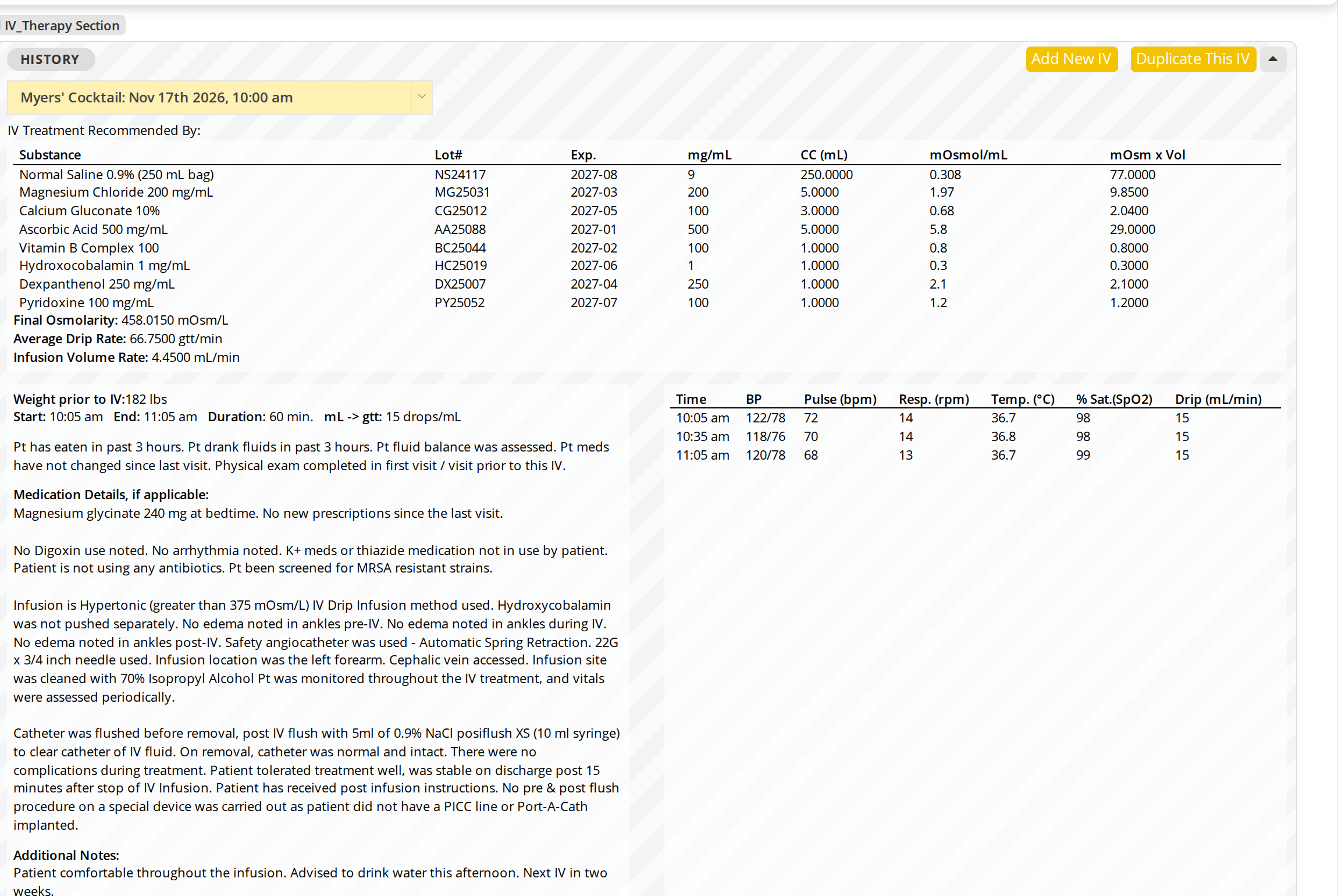
An earlier IV in the patient's next chart. Duplicate This IV starts this visit's IV from it.
How many earlier IVs a chart loads is set in your chart preferences, under Chart history, in the IV therapy row. See Chart History.
The IV on the Printed Chart
When you print the chart or open View Chart, the IV prints with its name, the practitioner who recommended it, the substance table without the cost columns, the final osmolarity and drip rates, the vital signs, the weight and timing, and every answer written out as a sentence. The additional notes print under Additional Notes.
Articles in This Section
- Pre-IV Screening and Infusion Timing: the questions before the IV, the weight, and how the start, end and duration work together
- Building the IV Formulation: adding substances, lot numbers and amounts, and how OutSmart works out the osmolarity and drip rate
- IV Protocols and Recipes: starting an IV from a saved protocol or recipe, and saving your own
- Documenting the Infusion: the access device, the vital signs table, complications and the patient’s status afterwards
- Finalizing the IV and Billing: producing the IV as a blend, what it does to inventory, undoing it, and billing it in Daily Express Checkout
- Printing an IV Bag Label: the label for the bag, its sizes and what prints on it
Related Pages
- Pro Charting Sections: every kind of section you can add to a Smart Chart
- Recipes and Blends: how recipes and blends work across the dispensary
- Protocols: saving and reusing whole sections
- Chart History: how earlier charts load into a new one
- Daily Express Checkout: where a finalized IV is billed