

Advanced Hours of Operation
A basic Hours of Operation event tells OutSmart that you’re available during a given window for any event type that can be booked online. Advanced Hours of Operation let you narrow that down by restricting a window to specific event types, or by tying it to specific rooms.
Both restrictions only apply to online bookings. Staff can still book any event type at any time from inside the calendar.
Restricting an Hours of Operation Block to Specific Event Types
When creating an Hours of Operation event, you can specify exactly which event types are allowed during that window.
- No event types selected: all online booking event types are allowed during that window. This is the default.
- One or more event types selected: only those event types can be booked online during that window.
Only event types in the Patient category restrict the window. Adding a Non-Patient or Background event type to an Hours of Operation event does not change which services patients can book.
For example, to set Mondays from 9 am to 12 pm as Acupuncture and IV sessions only:
- Create a new Hours of Operation event for Monday from 9 am to 12 pm.
- In the Type of Event box, choose Hours of Operation and also select Acupuncture and IV as the allowed event types.
- Click Save.
Patients booking online during that Monday morning window will only see Acupuncture and IV as options. Other event types will only be available outside that block.
Restricting an Hours of Operation Block by Room
You can also tie an Hours of Operation event to one or more of your office’s rooms, such as a treatment room or an IV room. In the event editor, choose the rooms in the room box under Office / Rooms.
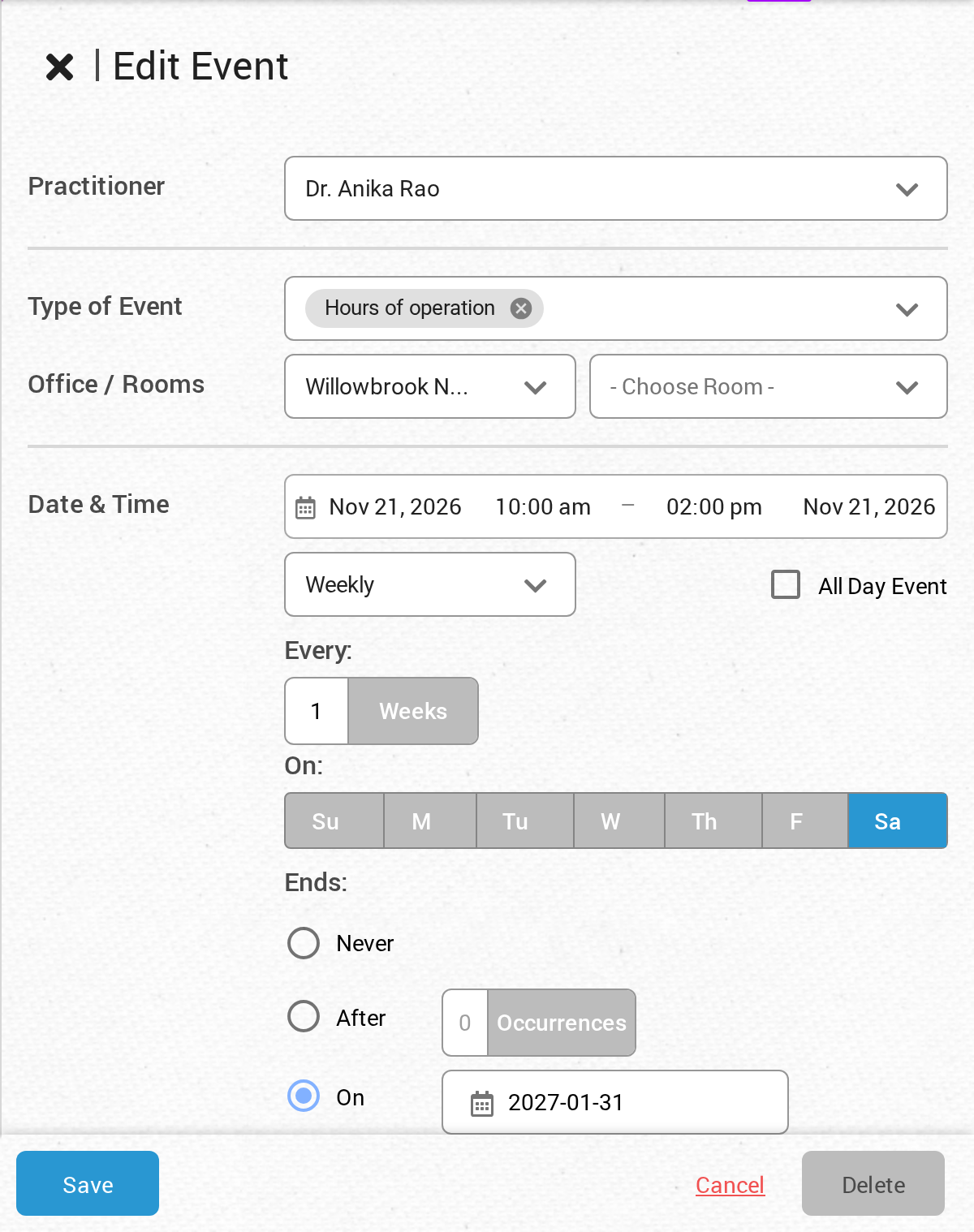
The room box beside the office under Office / Rooms ties the hours to the room you choose.
- No rooms selected: the hours apply to every room. If the event type has rooms set, one of those rooms must still be free for the booking to go ahead.
- One or more rooms selected: both the practitioner AND one of those rooms must be available for the booking to succeed.
For example, if you select “Room 1” on an Hours of Operation event, then during those hours patients can only book online if Room 1 is also free for the requested time.
Telling Event Types Which Rooms They Can Use
For room restrictions to work, you also need to tell each event type which rooms it’s allowed to use. An event type with no rooms set can’t be booked online during an Hours of Operation window that is tied to a room.
To set the rooms on an event type:
-
Open the Event Manager (click the gear icon at the top right of the calendar, then click Event Manager).
-
Find the event type you want to configure and click its pencil icon to edit it.
-
In the Location Details section of the editor, add the rooms in the Select all possible rooms for event box.
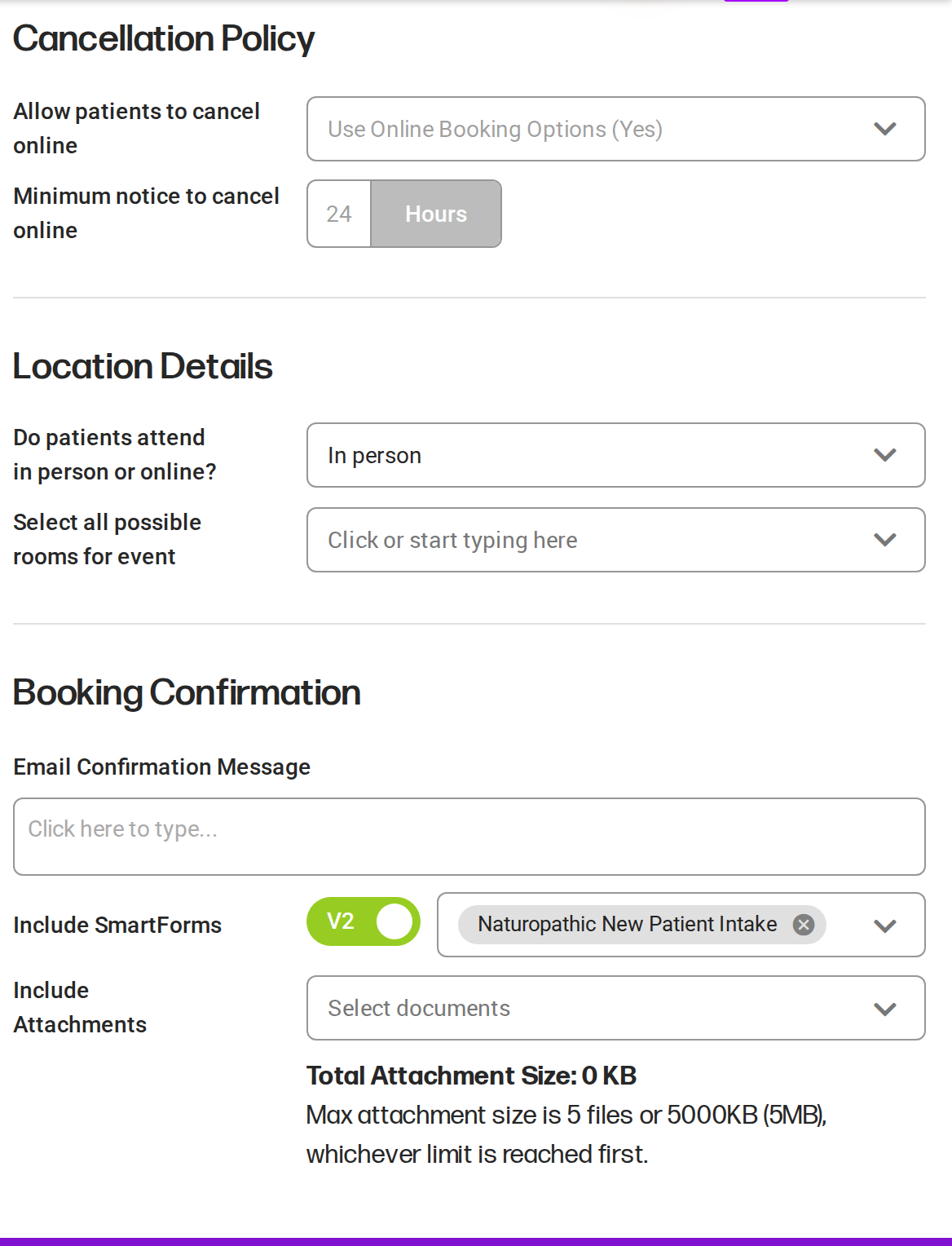
Add the rooms this event type may use in the Select all possible rooms for event box.
-
Click Save.
The rooms in the list have no priority order. When a patient books online, OutSmart books the appointment into a room from the list that is free at that time.
See Creating Event Types for the full event type editor.
How the Rules Combine
OutSmart applies the rules in this order when a patient tries to book online:
- Time: is the requested time inside an Hours of Operation block for the practitioner?
- Event type: does that Hours of Operation block allow the requested event type? (Either no event type restriction is set, or the requested type is in the list.)
- Room: is that Hours of Operation block tied to specific rooms? If so, does the event type include one of those rooms in its list, and is that room free at that time?
If any of the three says no, the slot isn’t offered.
Troubleshooting
Slots aren’t appearing when they should
- Check that the Hours of Operation block actually includes the event type the patient is trying to book.
- If you’re using room restrictions, check that the event type is set up with the rooms it needs.
Slots are appearing when they shouldn’t
- If you wanted to restrict an Hours of Operation block to certain event types but everything is still showing, make sure you actually selected those event types on the Hours of Operation event itself, not just on the event types you wanted to allow.
Bookings work for one event type but not another
- The event type may not be set up with the room your Hours of Operation block requires. Open the event type in the Event Manager and check the Location Details section.
Related Pages
- Setting Up Your Hours of Operation: the basics
- Creating Event Types: including how to set the rooms for an event type