

Calendar Settings
Your Calendar Settings control how the calendar looks and behaves on your screen: the time range it shows, how overlapping events are drawn, whether cancelled events stay visible, which practitioner calendars you see in the sidebar, and more.
To open the settings menu, click the gear icon at the top right of the calendar. The menu has five items:
- Event Manager opens the page where you set up your event types.
- Calendar Options opens the display settings for your own calendar, such as the time range, the scale, how stacked events behave and whether cancelled events are shown.
- Online Booking Options opens the settings for your online booking page.
- Online Booking Shortlist opens the list of event types that patients can book online.
- Global Confirmation Message opens the email message that patients receive when they book online.
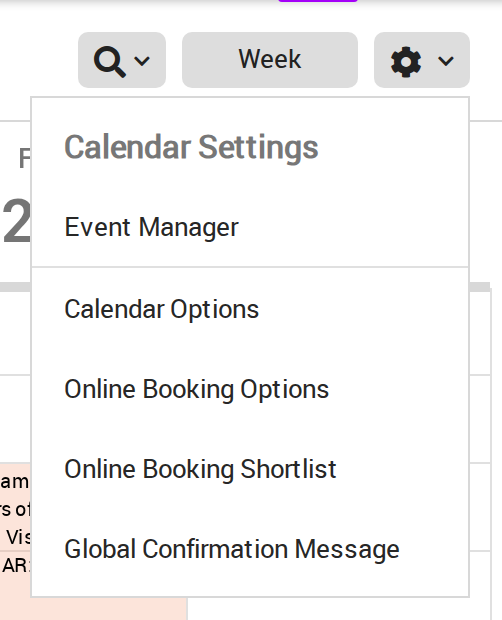
The gear icon at the top right of the calendar opens the Calendar Settings menu.
The calendars you see in the sidebar are not set from this menu. To choose them, click the More Calendars link at the bottom of the calendar list in the left sidebar. That link opens the Master Calendar List, which is explained in Calendar Master List and Short List.
The online booking items are explained in the Online Booking section, and the confirmation message is explained in Appointment Notifications.
Articles in This Section
- Calendar Options explains every setting in the Calendar Options panel, including event colours, time range, snap duration, stacked events inspection, the stack layout (Stacked or Side by Side) and showing cancelled events.
- Calendar Master List and Short List explains how to choose the calendars that appear in your sidebar.