

Calendar Overview
What is the Calendar?
The Calendar is where you manage all scheduling activities for your practice. Every appointment, break, vacation day, and operational event appears in your calendar, giving you complete visibility of your practice schedule.
What Are Events?
In OutSmart, events are the building blocks of your calendar. An event represents anything scheduled in your calendar, including:
-
Patient appointments
-
Breaks (lunch, coffee breaks, etc.)
-
Vacation time
-
Blocked time
-
Hours of operation
-
Personal time off
-
Any other scheduled activity
Think of events as universal calendar entries. They are flexible enough to handle any type of scheduling need in your practice.
Types of Events
Patient Events
Patient events are the most common type. They are scheduled appointments with patients for consultations, treatments, assessments, or follow-ups.
Non-Patient Events
These include:
- Breaks: lunch breaks, coffee breaks and rest periods.
- Vacation: time off, holidays and personal days.
- Blocked Time: reserved time that is not available for booking.
- Administrative: meetings, training and paperwork time.
- Hours of Operation: the times when the practice is open.
Key Features
Visual Schedule Management
- Each event type has its own color, so you can tell events apart at a glance.
- You can drag an event to a new time to move it.
- You can show several practitioners’ and offices’ calendars at the same time.
- You can assign an event to an office and to one or more rooms.
Flexible Event Types
- Create custom event types for your practice needs
- Assign different colors to different event types
- Set default durations and properties
- Link intake forms to specific event types
Patient Integration
- Create a new patient record while you book
- Patient history tracking
- Notifications to patients by email and text message
- Intake form distribution
Real-Time Updates
- The calendar reloads changes made by other people in your clinic
- Status tracking (pending, confirmed, completed, no show, and more)
- Automatic notifications and reminders
Configuring How the Calendar Looks and Behaves
You can change how the calendar displays: its time range, its default colours, what happens when events overlap, and whether cancelled events stay visible. Click the gear icon at the top right of the calendar and choose Calendar Options to open the panel. See Calendar Options for every available setting.
Calendar Views
To change the view, click the button beside the magnifying glass at the top right of the calendar. The button shows the name of the view you are using. Your calendar can display in these views:
| View | Best For |
|---|---|
| Day | A detailed schedule for one day |
| Week | An overview of the whole week |
| Month | A high-level view of the entire month |
| 5 Days | Five days side by side |
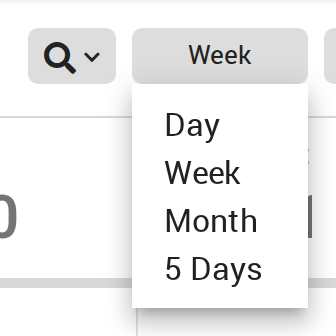
Click the view button in the toolbar to switch between Day, Week, Month and 5 Days.
Each practitioner’s events appear when that practitioner’s calendar is checked in the calendar list on the left. Check several calendars to see several practitioners’ schedules at the same time.
How the Calendar Responds to Clicks and Drags
Clicking an Empty Time
Click an empty time on the calendar to start a new event at that time. The New Event panel opens on the right.
Clicking Hours of Operation
Hours of operation are drawn as a shaded background behind your other events. A single click on the shaded background starts a new event at that time, the same as clicking an empty time. To change the hours of operation themselves, double-click the shaded background.
Dragging an Event to a New Time
You can drag an event to a new time or day. When you let go, OutSmart saves the new time straight away. Dragging an event does not send anything to the patient. To tell the patient about the new time, click the event, then click Send Confirmation on the event card.
If you would like OutSmart to ask before saving a drag, turn on Show warning when moving events? in Calendar Options. With it on, a Confirm Event Change message asks you to click Yes, Modify Event or Oops! each time you drop an event.
If the event you drag is one of a series of repeating events, OutSmart asks whether the change applies to this event only, to this and the following events, or to all events in the series. See Creating and Editing Repeating Events.
Cancelled Appointments
When Show Cancelled Events? is turned on in Calendar Options, a cancelled appointment stays on the calendar. If an active appointment is booked at the same time, the cancelled appointment sits underneath it, so the active appointment is the one you see first.
Events at the Same Time
When several events share the same time, they are stacked on the calendar. Depending on the Stacked Events Inspection setting in Calendar Options, you can hover over the stack to see each event, or click the stack to open a list of every event at that time and choose one.
Getting Started
To start using the Calendar effectively:
- Booking Events: learn how to book appointments and other events.
- Creating Event Types: set up the different types of appointments you offer.
- Editing Events: change an appointment’s time, practitioner, status or details.
- Deleting & Recovering Events: remove an event booked by mistake, and bring it back if you need to.
Quick Tips
Next Steps
- Booking Events: book your first appointment.
- Creating Event Types: customize event types for your practice.