

When Notifications Are Sent (and When They Aren't)
Confirmations and reminders go out automatically, but not unconditionally. Each message checks a set of rules first, and if any one of them is not met, that message is skipped. Most “my patient never got anything” questions come down to one of the rules on this page.
This page is the checklist. For what each message contains and how to write your own wording, see Appointment Confirmations and Appointment Reminders.
The short version
| Confirmation | Reminder | |
|---|---|---|
| Yes | Yes | |
| Text message | Never | Yes, if the patient is set up for it |
| When | Once, at the time of booking | On the schedule you set for the event type |
What has to be true for a confirmation email
A confirmation email goes out in three situations:
- The patient booked online. The confirmation sends on its own as soon as they finish booking.
- You booked in the calendar and clicked Save & Send. Clicking plain Save books the appointment without sending anything.
- You sent it by hand afterwards. Click the event in the calendar and click Send Confirmation on the event card. Use this if the confirmation was not sent at the time, or if the patient says the first one never arrived.
The patient also needs a valid email address on their profile, and emails to that address must not be stopped. An address is stopped when it bounced, when the patient unsubscribed, or when one of the clinic’s emails was reported as spam. A stopped address cannot be emailed at all until someone on your team starts emails to it again, which is covered in When Emails To A Patient Are Stopped.
What has to be true for a reminder
Four things, all at the same time.
1. The event type has a reminder rule
Reminders are set per event type in the Event Manager. An event type with no reminder rules sends no reminders, whatever else is true. The event type must also still be in the Event Manager: if an event type is deleted, appointments already booked with it get no further reminders.
Email reminders and text reminders are separate rules. Adding an email reminder does not also create a text reminder. If you want both, add both. An event type set up with only an email rule will never text anyone, no matter how the patient’s profile is configured.
2. The appointment is in a status that allows reminders
Only three statuses get automatic reminders:
- Pending
- Booked
- Left Message
Every other status stops reminders for that appointment, including Confirmed, Cancelled, No Show, Rescheduled, Attended, and Checked In. New appointments start as Pending, so reminders are on by default unless someone changes the status.
3. The appointment has a patient on it
Blocks of time with no patient, such as hours of operation, lunch breaks, and other admin blocks, never generate reminders even when an event type carrying reminder rules is applied to them. Repeating events fall into this group too, since repeating is only available for non-patient and background events.
4. The reminder’s send time has not already passed
OutSmart checks for reminders that are due once an hour, so a reminder goes out within the hour of its send time. A reminder whose send time had already passed when the appointment was booked is skipped, not sent late. For example, an appointment booked this afternoon for tomorrow morning does not get a 2-day email reminder. Once an appointment’s start time has passed, no more reminders go out for it.
What a patient profile needs before texts can go out
Text reminders have two extra requirements, on top of everything above. Both live on the patient’s profile:
- A number in the Mobile field. Text messages only ever go to the Mobile field. A number in the home or work phone field is never texted.
- The SMS checkbox beside that field checked. This is the patient’s consent to be texted. Without the checkmark, no text goes out, even when the Mobile field is filled in correctly.
These two are the first thing to check whenever a patient says they are not getting texts. A patient can be receiving every email perfectly and still never get a text, because emails and texts read different fields on the profile.
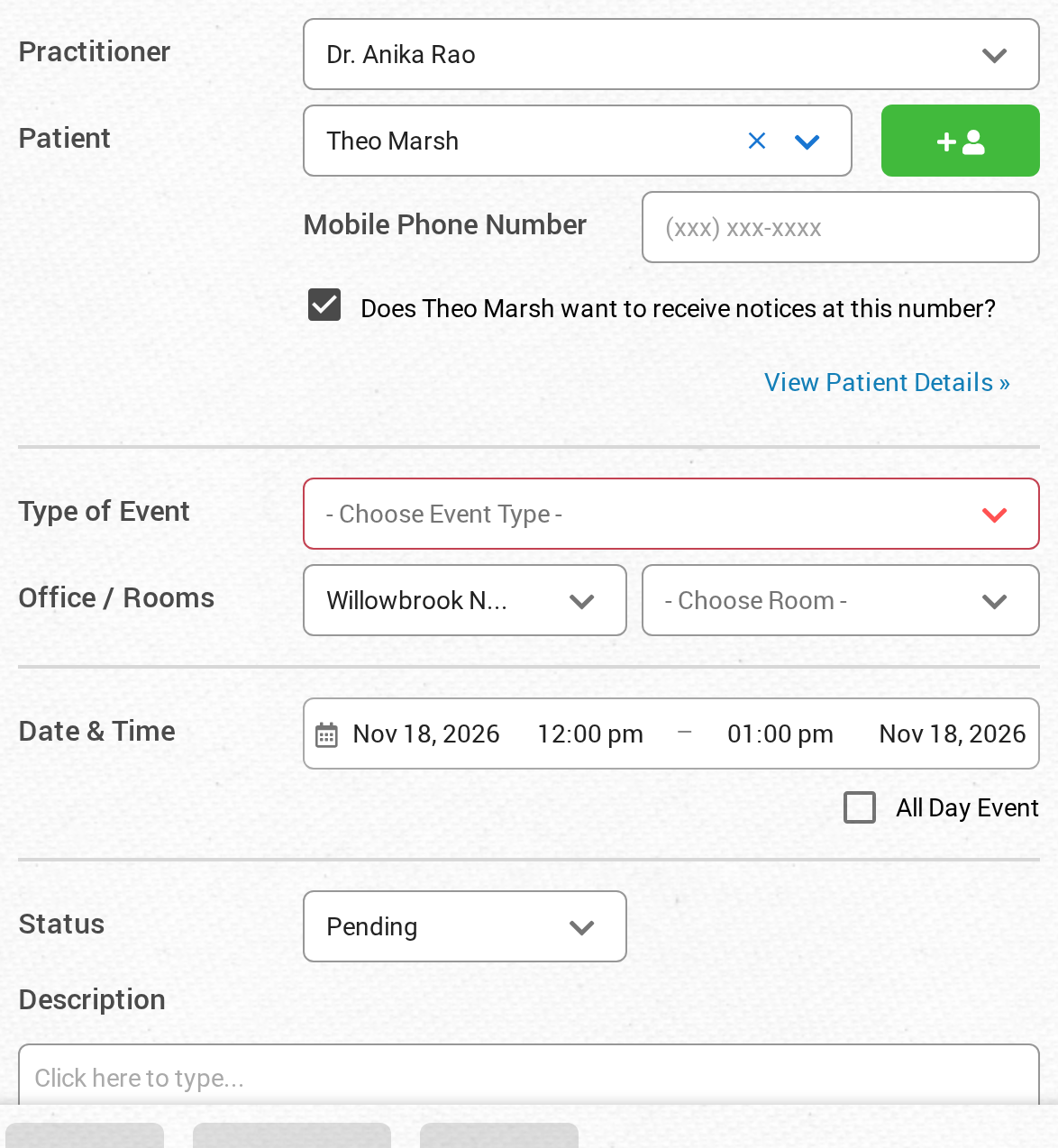
When you book in the calendar, the checkbox under Mobile Phone Number in the New Event panel asks whether the patient wants notices at that number.
Check that the number in the Mobile field really is a mobile number. A landline or an office line cannot receive text messages at all, so a reminder addressed to one never arrives no matter how the rest of the setup looks.
Sending a reminder by hand
You can send a reminder at any time from the calendar. Click the event in the calendar, and then click the Send Reminder link on the event card. The reminder goes to the patient by email. If the SMS checkbox beside the patient’s Mobile field is checked, a reminder text message goes out as well, whatever reminder rules the event type has. Once a reminder has been sent, the link reads Reminder Sent (Send Again). Click (Send Again) to send another.
Confirming an appointment stops the remaining reminders
When a patient clicks the confirm button in a reminder email or text, the appointment moves to Confirmed. Confirmed is not one of the three statuses that allow reminders, so no further reminders go out for that appointment.
That is the intended behaviour, but it surprises clinics when a patient confirms a reminder sent a long way ahead and then hears nothing again before the visit. Each event type can only show the confirmation button on reminders within a set number of days of the appointment, or leave the button off entirely. Both settings, and advice on which to pick, are in Controlling the confirmation button in reminder emails.
Checking what happened for a specific appointment
Every appointment keeps its own log of changes and messages sent. Click the event in the calendar, click More Details, then open Logs. The log shows status changes with timestamps and the notifications that went out.
This is the fastest way to answer “should this patient have received a reminder?” for a real appointment. If the status was changed to Confirmed or Cancelled before the reminder was due, the log shows when and the reminder was correctly skipped. Full walkthrough in Accessing Event Logs.
Common questions
My patient did not get a text confirmation
Confirmations are email only. There is no text confirmation to receive. The patient gets a text at the reminder stage instead, if the event type has a text reminder rule and their profile is set up for texts.
My patient gets emails but never texts
Almost always the patient profile. Check the Mobile field has a number in it and that the SMS checkbox beside it is checked. If both look right, check the event type actually has a text reminder rule, since an email-only rule set never produces texts.
My patient stopped getting reminders partway through
Check the appointment status. If the patient confirmed from an earlier reminder by clicking I’ll be there!, the appointment is now Confirmed and no further reminders go out. The event log shows exactly when the status changed.
Nobody is getting reminders for one particular type of appointment
Check that event type in the Event Manager. It most likely has no reminder rules, or has email rules only. Reminder rules are per event type, so a new or copied event type can easily end up with none.
My patient is not getting any emails from us
Open the patient’s workspace and look at the patient card. If emails to their address are stopped, because the address bounced, the patient unsubscribed, or an email was reported as spam, a yellow Emails stopped notice appears under the email address with a button to start emails again. See When Emails To A Patient Are Stopped.
I still think a reminder should have been sent
Open the event log for that appointment and check the status history against the rules above. If the log does not explain it, open Ask OutSmart with the button at the bottom of any page, and give the appointment’s date and time. We will review the sending logs and explain what happened.
Related Pages
- Appointment Notifications. Overview of the two message types and the email troubleshooting list.
- Appointment Confirmations. What the confirmation email contains and the three ways to send it.
- Appointment Reminders. Setting up reminder rules and controlling the confirmation button.
- Creating Event Types. Where reminder rules are configured, per event type.
- When Emails To A Patient Are Stopped. The notice on the patient card when the patient’s address receives no email.
- Accessing Event Logs. Checking status changes and sent messages for one appointment.
- Editing Events. Changing an appointment’s status, which is what turns reminders on and off.
- Smart Forms In Appointment Reminders. How reminders name the intake forms a patient still has to finish.