

Waitlist
The OutSmart Waitlist lets your clinic keep a list of patients who want an appointment but can’t find a time that fits, and shows them to your staff when a matching opening appears. The system does not hold times for anyone and does not contact patients on its own. Your staff works the list from a single dashboard card that shows who is waiting, what they’re waiting for, and whether anything has opened up that matches.
Every waitlist entry is tied to a specific appointment type and one or more practitioners, plus a set of patient preferences: which days of the week, which periods of the day, how much notice the patient needs, an optional date range, and how they’d like to be contacted. The system checks the live calendar against those preferences and marks each entry green, orange, or red depending on whether matching openings exist.
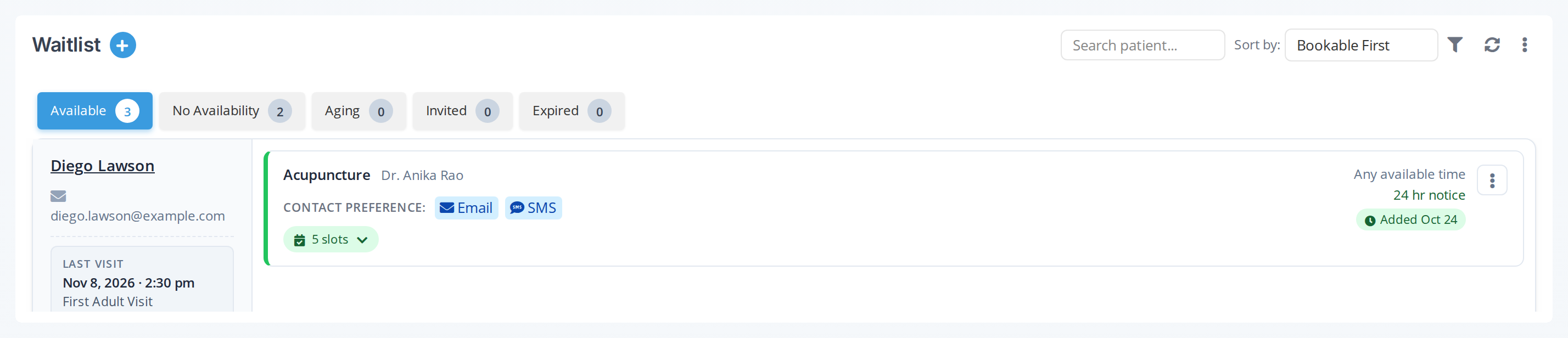
Your staff work the waitlist from the Waitlist card on the dashboard.
Where the Waitlist Lives
The waitlist appears in four different places across OutSmart. Each has a specific job:
| Where | Who Uses It | What It Does |
|---|---|---|
| Waitlist Dashboard Card | Practitioners + admin staff | View, search, filter, and act on every active waitlist entry for your office |
| Add to Waitlist panel | Practitioners + admin staff | Create or edit waitlist entries on behalf of a patient (for example, after a phone call) |
| Online Booking Waitlist | Your patients | A “Join Waitlist” option that appears when no online booking times match their needs |
| Find Availability calendar tool | Practitioners + admin staff | Search the calendar for times that fit a patient’s preferences, and add the patient to the waitlist from the same window if none of them work |
Key Concepts
Preferences
Every entry records when the patient is available as a grid of days of the week (Mon to Sun) and periods of the day (AM, PM and Evening). Alternatively, the entry can be marked Any available time (ASAP), which matches any opening regardless of day or period. The system uses these preferences to decide which calendar times count as matches for that patient.
Multi-Practitioner Entries
A waitlist entry can name a single practitioner, several specific practitioners, or, if the patient added themselves through online booking, any practitioner offering the service. The system checks every practitioner on the entry at once, and each matching time is labelled with the practitioner it belongs to so your staff knows who is open.
Bookability (Colour Coding)
Each entry on the dashboard is marked by whether matching openings exist in the next 6 months:
- Green: matching times within the next 90 days.
- Orange: matching times exist, but the earliest is more than 90 days away.
- Red: no matching times in the next 6 months.
Bookability decides whether an entry appears on the Available tab or the No Availability tab of the dashboard card.
Aging
The Aging tab shows entries that have no matching times and were added more than 180 days ago. These patients have waited a long time with nothing opening up, so the tab makes it easy to find them and call them or remove them. Every entry on the Aging tab also appears on the No Availability tab.
Expiry
If an entry has an Until date and that date passes without a booking, the entry moves to the Expired tab on its own. An entry also moves to Expired if its appointment type no longer exists.
Who Sees What
| Role | What They See on the Dashboard Card |
|---|---|
| Practitioner | Only entries assigned to them |
| Admin staff | Every entry across all practitioners in the office |
| Patient | Their own entries via online booking (no dashboard card access) |
What the Waitlist Does NOT Do
Some things are deliberately left to your staff:
- No automatic phone calls, emails, or texts when a time opens. Your staff decides who to contact and when.
- No holds. A matching time isn’t reserved for the waitlisted patient. Anyone can still book it through the calendar or online booking.
- No automatic next-in-line. If a contacted patient declines, the system doesn’t move on to the next patient by itself.
An entry stays on the list until your staff marks it booked or cancels it, the patient books a time you sent them a booking link for, or its Until date passes. While a patient has a booking link waiting for a reply, their entry stays off the Available tab so nobody offers them a second time by mistake.
Getting Started
The waitlist lives in four places, and each one has its own setup. Only one of them needs anything turned on:
- Waitlist Dashboard Card: add the card to your dashboard. Any practitioner or admin can add it. No special permission or admin help is needed. Once it’s on your dashboard, you can start managing waitlist entries.
- Add to Waitlist panel: opens from the + button on the dashboard card. No separate setup.
- Find Availability calendar tool: available in the calendar toolbar. See Find Availability Tool for details.
- Online Booking Waitlist: this is the only piece that needs turning on. To let patients add themselves through your online booking page, turn on the Waitlist setting in your online booking page editor. The office owner, admin staff, or, for a practitioner-priority booking page, the practitioner themselves on their own page can change this setting. Online booking and its Waitlist setting depend on your subscription. See Waitlist Settings for how.
Articles in This Section
- The Waitlist Dashboard Card: the main workspace for managing the waitlist
- Adding a Patient to the Waitlist: how staff create entries
- Notifying a Waitlist Patient: emailing or texting a patient about a possible opening
- Sending a Booking Link: offering a patient one specific time that they book themselves
- Booking a Patient From the Waitlist: turning a matching time into a real appointment
- Managing Waitlist Entries: editing, marking booked, cancelling, and reviewing entry history
Related Pages
- Find Availability Tool: search the calendar from the calendar side, and add the patient to the waitlist if nothing fits
- Waitlist Settings (Online Booking): turn on the patient-side Join Waitlist link on your online booking page
- How Patients Join the Waitlist: what your patients see when they sign up through online booking