

Calendar Alerts
Calendar Alerts are notes written in the Workspace Notes area of the Patient Workspace that are specifically connected to a patient’s calendar. Labelling a note as a Calendar Alert tells OutSmart that it is important for you or other staff to see this information when booking an appointment for that patient. OutSmart then shows the note at the time it is most relevant: when you book the appointment.
Notes labelled Emergency Alert or Medical Alert are shown in the same place, so staff see them while booking too.
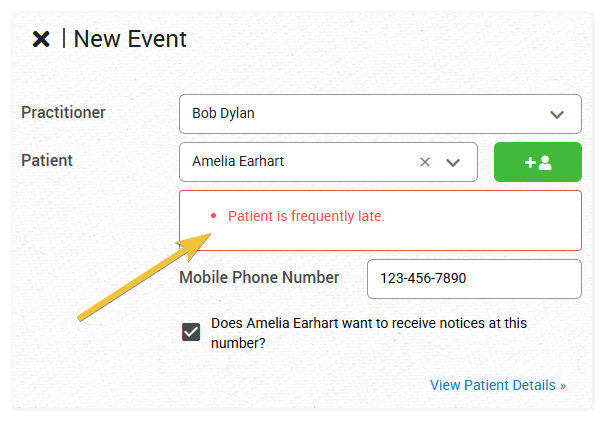
Calendar Alerts will show up in red once the patient is selected during booking.
Where alerts appear
- In the New Event or Edit Event panel. As soon as you choose the patient, their alerts appear just below the patient field. Up to three alerts are shown. If the patient has more, click View all N alerts (where N is the number of alerts) to open the patient’s details and see every one.
- In the event’s full details. Click the event in the calendar, then click More Details. The Patient Alerts section lists every alert for the patient, with the name of the person who wrote it and the date.
Who sees an alert
An alert is a note, so the note’s Visibility setting decides who sees it in the calendar. A new note is set to Only Me until you change it. If you want the front desk to see an alert when they book, set the note’s Visibility so that it includes them. Workspace Notes explains each Visibility choice.
How to Create a Calendar Alert
To create a calendar alert, create a new note in the Patient Workspace, set its Visibility, and then label it as a Calendar Alert.