

Calendar Master List and Short List
The OutSmart Calendar gives you access to the calendars of the practitioners and rooms in every office you’re connected to. Admin staff can see every calendar in their offices. A practitioner can see their own calendar and the calendar of every other practitioner who has not set their Calendar visibility to Private in Calendar Options. The full list of calendars that you can see is called the Master Calendar List.
For larger clinics with dozens of calendars, the Calendar Shortlist is an essential tool. It is the smaller list of calendars that appears in the left sidebar of your calendar. You choose which calendars from the Master Calendar List go into it, which keeps the calendar cleaner and easier to manage.
Setting Up Your Shortlist
To create your own Calendar Shortlist, follow these steps:
{% stepper %} {% step %}
Open the Calendar
Open your OutSmart Calendar. On the left side, you’ll see your current list of calendars. By default, this list includes all practitioners and rooms in your current office. If the list is empty, the sidebar shows the words No Calendars. {% endstep %}
{% step %}
Access The Master Calendar List
Click the More Calendars link at the bottom of the calendar list in the left sidebar to open the Master Calendar List. This list contains every calendar you have access to across all your connected offices, grouped under the name of each office.
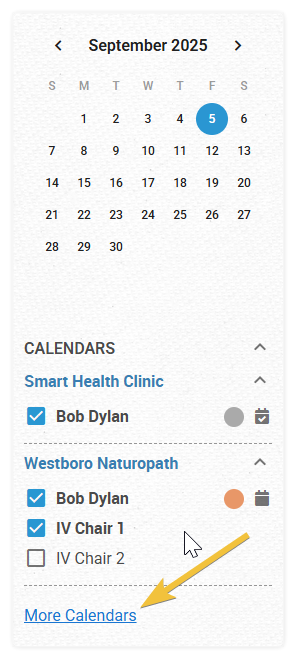
Click "More Calendars" to
access the Master Calendar List
{% step %}
Select the calendars you want in your Shortlist
In the Master Calendar List, check off each calendar you want in your shortlist, and uncheck any calendar you want to take out of it. Each change is saved as soon as you check or uncheck a box, so there is no Save button.
A practitioner’s calendar that has been set to Private shows an eye with a line through it instead of a checkbox. You cannot add a private calendar to your shortlist.
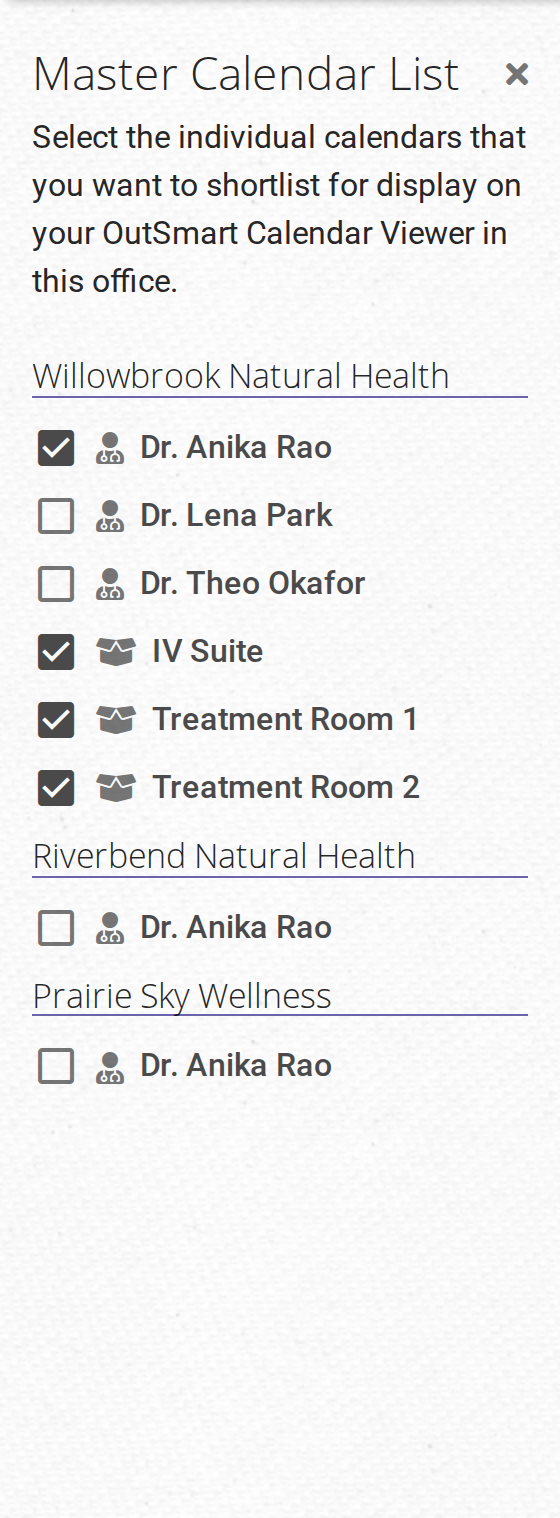
The Master Calendar List shows every calendar you can see, grouped by office. Check the ones you want in your shortlist.
{% step %}
Close The Master Calendar List
When you’re finished, click the X at the top right of the Master Calendar List to close it. {% endstep %} {% endstepper %}
Your shortlist now appears on the left of your calendar. You can show and hide calendars from this smaller list without the clutter of the full master list.
Using the Shortlist in the Sidebar
The sidebar shows your shortlist under the heading Calendars, grouped by office. If you have calendar groups, they appear under a separate heading called Groups.
- The checkbox beside a calendar shows that calendar’s events on the calendar when it is checked, and hides them when it is unchecked.
- The colour box beside a practitioner’s name lets you pick a colour for that practitioner. The calendar uses this colour for their events when Set event colors in Calendar Options is set to Practitioner.
- The small calendar icon beside a practitioner’s name shows that practitioner’s hours of operation in the background of the calendar. Click it again to hide them. You can show one practitioner’s hours this way at a time. This icon does not appear in the desktop Day view, because that view shows every practitioner in a separate column with their hours of operation already drawn.
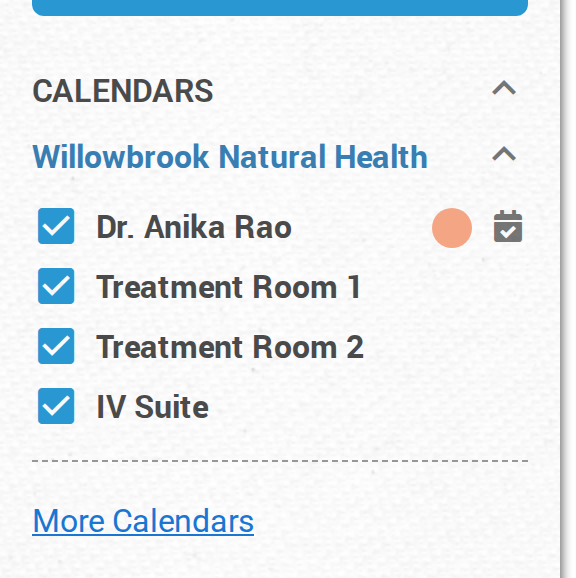
Your shortlist in the sidebar. The colour dot and the calendar icon appear beside a practitioner's name.