

Appointment Notifications
OutSmart sends two automated messages to patients about their appointments: the Confirmation Message (at the moment of booking) and the Reminder Message (shortly before the appointment). They serve different purposes and use different channels.
Email or SMS: Which Goes When
| Message | Channel | Why |
|---|---|---|
| Confirmation (at the moment of booking) | Email only | Confirmations carry the substance: your custom message, intake forms to fill in, document attachments, practitioner messages. None of that fits in an SMS. |
| Reminder (shortly before the appointment) | Email + SMS | Reminders are timely nudges. The SMS is the glanceable “you’re booked tomorrow at 10” ping. The email reminder carries the fuller detail (event name, practitioner, office address, OutSmart Meet link if applicable, and the confirm-attendance button). |
This split is intentional. SMS messages cannot carry attached intake forms or custom practitioner content; if a duplicate SMS went out alongside the booking email, patients would risk dismissing the email as redundant and then miss the forms they need to fill in before the visit. So at booking time, only the email goes; SMS is reserved for the timely reminder window close to the appointment.
Confirmation Message
The confirmation message is sent to a patient immediately after an appointment is booked. Its purpose is to let the patient know their appointment has been successfully scheduled and to deliver any important information they need right away.
- When It’s Sent:
- Online Bookings: Sent automatically upon booking.
- Manual Bookings: Sent when you click the Save & Send button as you create the appointment, or later from the Send Confirmation link on the event card.
- What It Includes: You can configure the message to include a custom note, digital intake forms, and document attachments.
- Configuration: The confirmation message can be set up in two ways:
- Event Manager: A specific message can be written for each individual event type. This message overrides the global confirmation message.
- Global Confirmation Message: A general, “catch-all” message that is sent for any event type that does not have its own message.
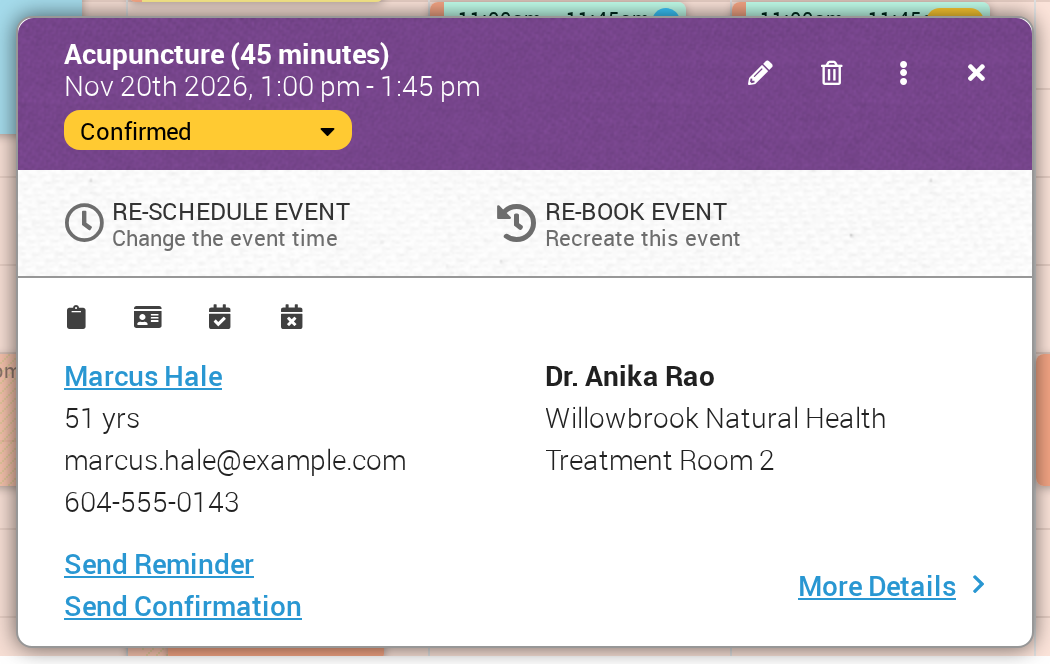
The Send Reminder and Send Confirmation links on the event card send the patient a reminder or a confirmation by hand.
Reminder Message
The reminder message is intended to remind a patient that their appointment is coming up. You have granular control over when these reminders are sent.
- Configuration: Each event type can have its own reminder settings, configured in the Event Manager.
- Timing: You choose how far ahead of the appointment each reminder goes out. An email reminder is set in days before the appointment, and a text message reminder is set in hours before the appointment.
- Content & Delivery:
- Email: Can contain a custom message, an OutSmart Meet virtual meeting link, and a note reminding them to complete any assigned intake forms if they are still outstanding.
- SMS: A quick text message to let them know their appointment is approaching.
- Appointment Confirmation: Both the email and SMS reminders include a link or button that allows the patient to confirm their attendance. When a patient clicks it, the appointment is marked as confirmed in your calendar, and no further reminders go out for that appointment.
- Controlling the confirmation button: Each event type has two switches, one that shows the confirmation button on reminder emails and one that shows it on reminder text messages. You can turn either switch off if your reception confirms appointments by phone. While a switch is on, you can also choose to show the button Always, or only on reminders sent Within X days of appointment, so that a far-out reminder still goes out as a heads-up but cannot be confirmed early. See Appointment Reminders for both settings and when each one fits.
Troubleshooting
Why is my client not getting email notifications?
Several reasons can stop an email reaching a patient:
- The patient’s record has no email address, or has an invalid one.
- The event type has no auto-reminder rules configured. Without rules, no reminders go out for it.
- Emails to the patient’s address are stopped, because the address bounced, the patient unsubscribed, or one of the clinic’s emails was reported as spam. OutSmart cannot send email to a stopped address until someone on your team starts emails to it again.
- The email went to the patient’s spam folder, or their email provider blocked it as suspected spam.
If you need help looking into a specific appointment, open Ask OutSmart with the button at the bottom of any page.
My patient has stopped receiving any emails from OutSmart, but I can still reach them through other channels
When a patient stops receiving every email from OutSmart (appointment reminders, confirmations, Smart Form assignments, document shares) but you can still reach them by direct email, text message, or phone, the most likely cause is that emails to their address are stopped. This happens when the address bounced, when the patient unsubscribed, or when one of the clinic’s emails was reported as spam.
When emails to a patient’s address are stopped, a yellow Emails stopped notice appears on the patient card in the patient workspace, and on the event card when you click the patient’s appointment in the calendar. If the patient has asked to receive the clinic’s emails again, click the Resubscribe button on the notice. If the address bounced, check that it is spelled correctly on the patient’s record, and then click Unblock. Email delivery resumes from the next message the clinic sends. See When Emails To A Patient Are Stopped for the full steps and the limits on starting emails again.
Do confirmation emails go out automatically when I book a patient?
For online bookings, yes. The Confirmation Email is sent automatically when the patient completes the booking.
For manual bookings in the calendar, no. You need to send it yourself. Either click Save & Send in the event editor, which sends the confirmation as it saves the appointment, or click the existing event in the calendar and click the Send Confirmation link on the event card. See Appointment Confirmations for the full flow.
The confirmation email goes to the patient only. When it is sent, OutSmart also sends a separate New Booking email to the practitioner. For an online booking, the office also gets its own New Booking email, unless the office’s email address is the same as the practitioner’s. If you don’t want these emails cluttering your inbox, set up a filter in your email program to archive or delete them automatically.
Where do I edit my custom confirmation message?
A confirmation message can be configured in two places:
- Event Manager, for a message specific to one event type. The message goes in the Email Confirmation Message field of the event type editor.
- Global Confirmation Message, for the catch-all default that applies to any event type without its own message. See Global Confirmation Message.
Both are items in the menu that opens from the gear icon at the top right of the calendar. OutSmart picks the event-specific message first if one exists, then falls back to the global message, then to a basic system-generated confirmation if neither is configured.