

Creating and Editing Repeating Events
Repeating events are events that automatically recur on your calendar. This feature is restricted to non-patient events, such as lunch breaks, or background events, like hours of operation. Patient appointments cannot repeat, which prevents scheduling conflicts that could arise from creating recurring patient appointments without checking each date.
Creating a Repeating Event
To create a new repeating event, follow these steps:
- Click on the calendar at the desired start time to open the New Event panel.
- Select a non-patient event or a background event from the Type of Event options. The repeat dropdown appears only after you choose one of these types.
- Under the date and time, click the dropdown that says Does Not Repeat.
- From the list, choose the type of recurrence you want to set:
- Daily
- Every weekday (Monday to Friday)
- Every Monday, Wednesday, Friday
- Every Tuesday and Thursday
- Weekly
- Monthly
- Yearly
- Based on your selection, more options appear below. Configure the details of the recurrence:
- Every: how often the event repeats, for example every 2 weeks.
- On: for weekly events, the days of the week. For monthly events, the On the: option picks either the same date each month or the same weekday each month.
- Ends: choose Never, After a number of occurrences, or On a date.
- Click Save.
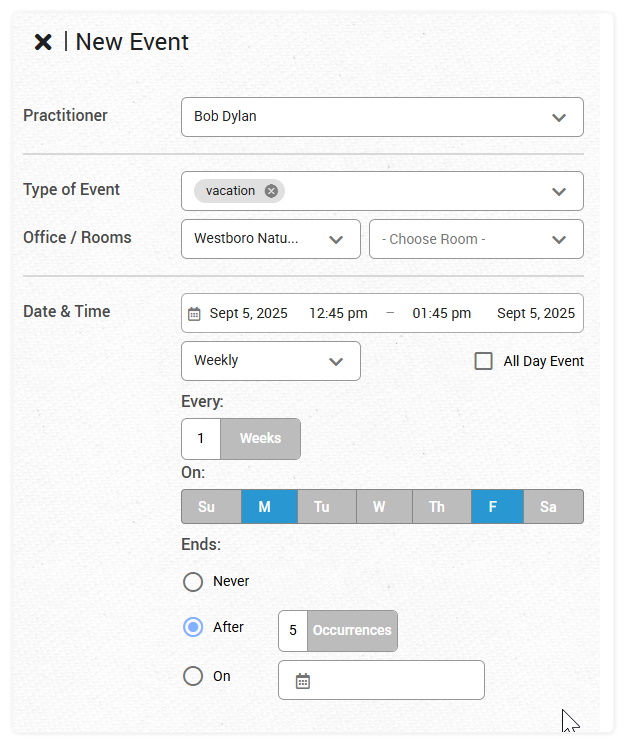
New Event panel showing a sample repeating event configuration.
Editing a Repeating Event
You can edit a repeating event by double-clicking on it in the calendar. This will open the Event Editor panel.
Once you have made your changes and click Save, a box titled Edit Recurring Event appears with options for how to apply your edits:
- This Event: This will only apply the changes to the specific event you clicked on, leaving all other events in the series unchanged.
- This and following events: This will apply the changes to the current event and every later event in the repeating series.
- All events: This will apply the changes to all events in the repeating series, including past and future events.
Choose an option and click okay, or click cancel to leave the series as it was.
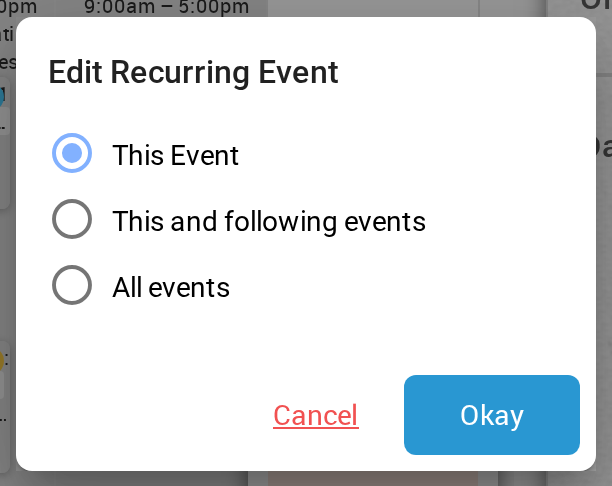
Choose which events in the series your change applies to, and then click Okay.
The same Edit Recurring Event box appears when you delete one event in a repeating series, and when you drag one event in a series to a new time.
Important: We highly recommend editing All events whenever possible. Creating multiple exceptions to a repeating event can lead to conflicting rules and make your calendar difficult to manage. For significant changes to your recurring schedule, it’s often best to delete the existing series and create a new one with the desired settings.