

Accessing Event Logs
The Event Logs are a log of all activities, both manual and automated, that involve a specific event in your Calendar. This includes the creation of the event, any modifications, and any emails or notifications that have been sent as a result of the event creation and event changes.
To open the Event Logs for an event, click the event in your calendar. A small summary panel opens. Click More Details at the bottom of that panel. The full event panel opens on the right. Scroll down to the Logs section. The number beside Logs tells you how many entries there are. Click the + button beside Logs to open the list.
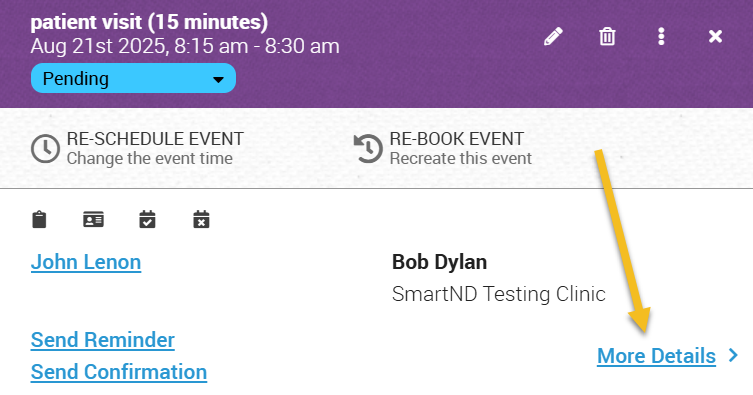
Click an event in the calendar to show this panel, and then click on More Details.
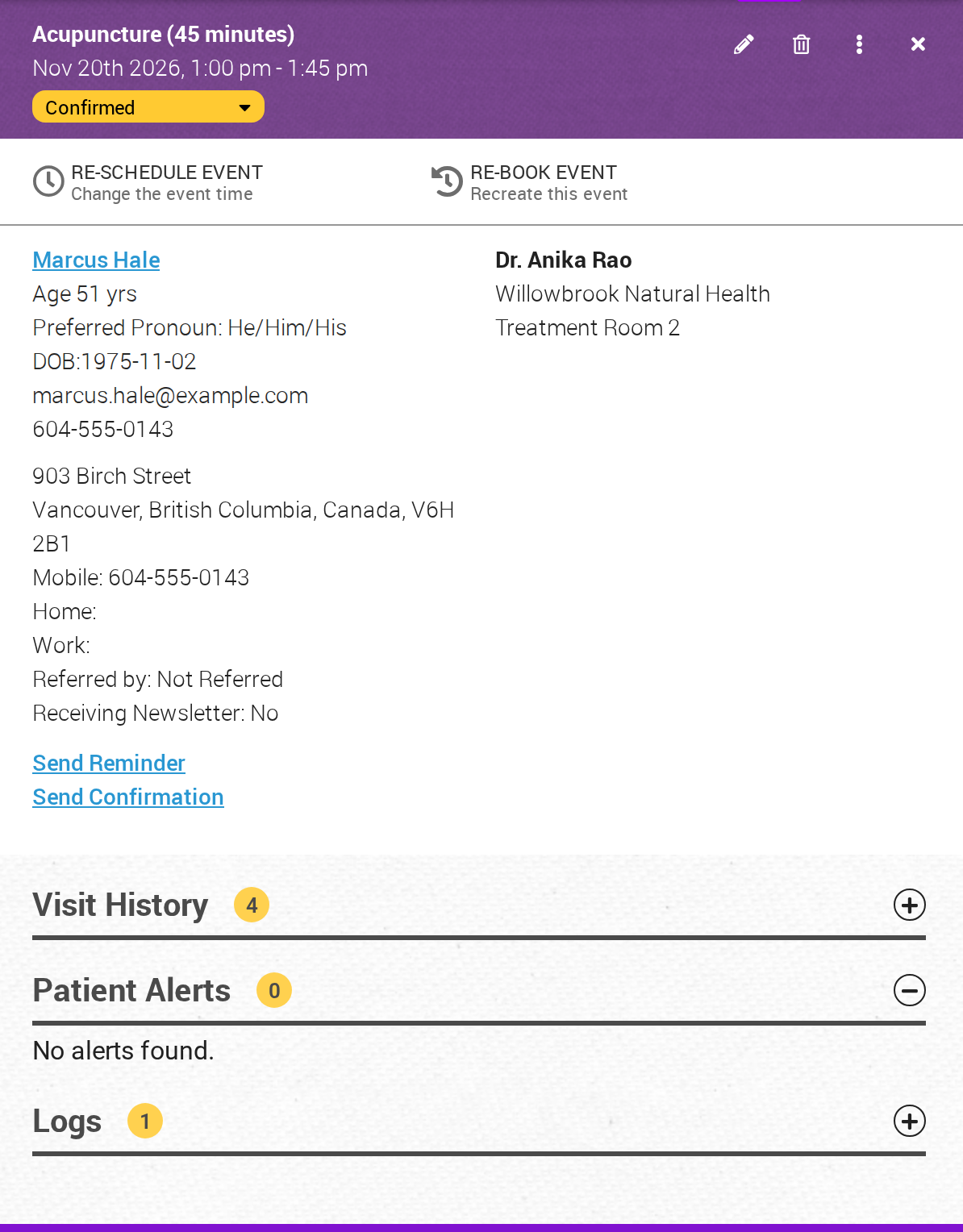
The More Details panel. Click the + button beside Logs to open the log for this event.
The Event Log will help you to investigate changes related to the event, and notifications sent, in case there are any unexpected changes to that event, or notification issues. Logs are listed in reverse chronological order, with the most recent activity at the top of the list.
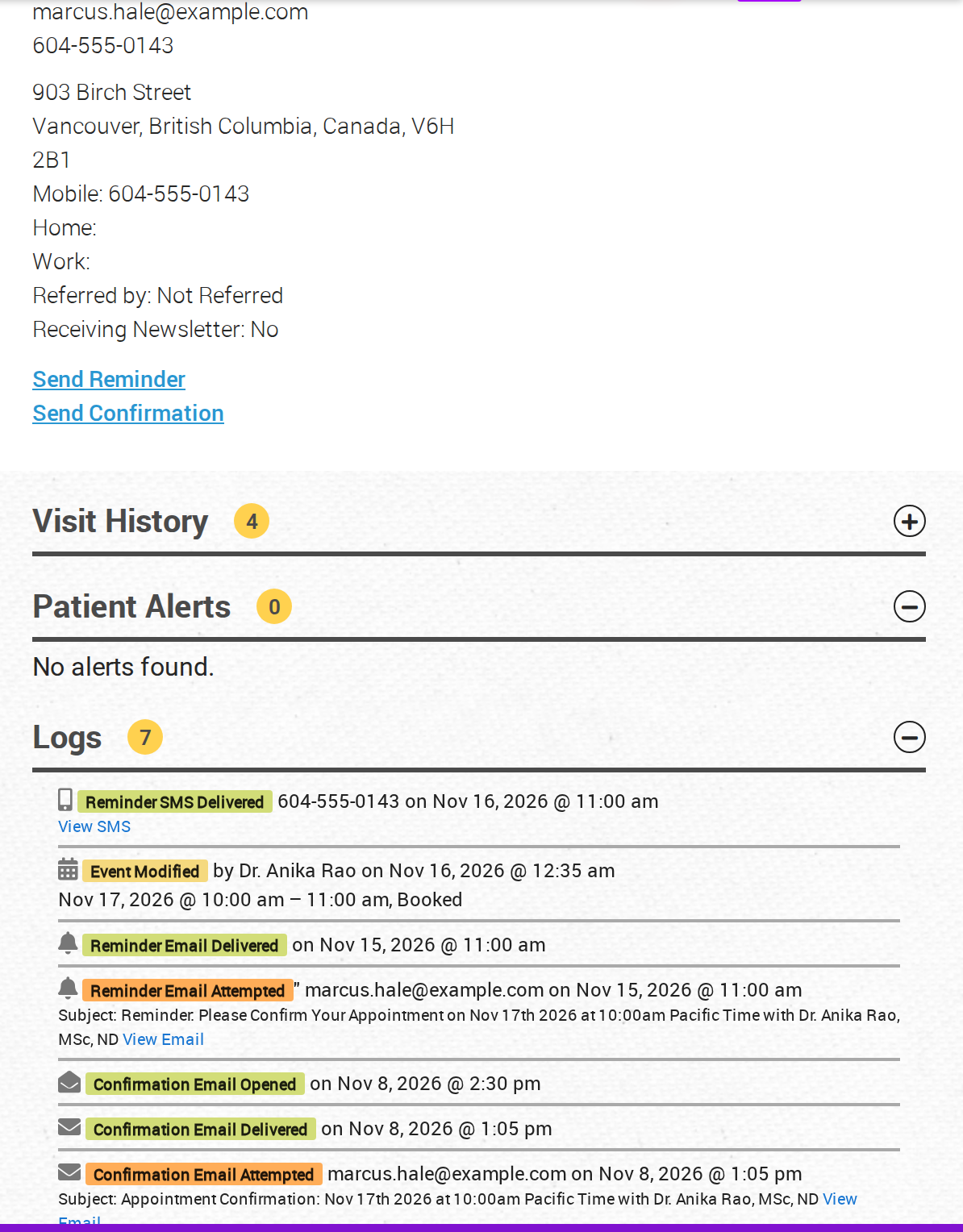
The open log, newest first. Each email and text message has a coloured label, and View Email or View SMS shows what was sent.
What the log shows
Each entry in the log is one of these:
- Event Created, Event Modified or Event Cancelled, with the name of the person who did it and the date and time they did it. Under it is the appointment’s date, time and status as they were at that moment. A cancelled event also shows the reason given for cancelling.
- An email about the event, such as a confirmation, a reminder or a cancellation notice. The coloured label tells you what happened to the email, for example Reminder Email Delivered, Confirmation Email Opened or Cancellation Email Bounced. Click View Email to see the email that was sent.
- A text message about the event. The label tells you whether the text message was delivered or failed. Click View SMS to see the text message that was sent.
Logs for the patient’s other visits
If the event is for a patient, the same panel has a Visit History section that lists the patient’s other appointments. Click any appointment in Visit History to open it, and its Event Logs appear underneath.