

Sending a Booking Link From the Calendar
A booking invitation is a link you send to one patient for one specific appointment time. The patient opens the link, sees the appointment details already filled in on your online booking page, and confirms it themselves.
You can send one from the calendar as well as from the waitlist card. Use the calendar when the patient is not on your waitlist.
How to send one
-
In the calendar, click an empty time to start a new event at the time you want to offer.
-
Choose the patient and the event type.
-
Click More at the bottom of the event panel, beside Save and Save & Send. A small menu opens with Send booking link and Copy booking link.
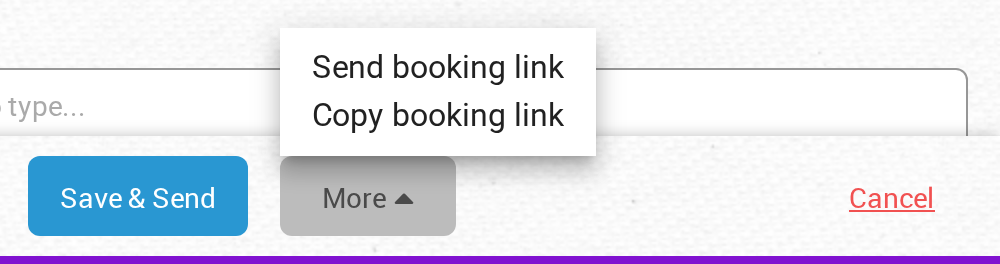
Click More at the bottom of the New Event panel to send or copy a booking link.
-
Click Send booking link. The Send a booking link window opens. It shows who is being invited, the time, the practitioner, the event type and the office.
-
Choose a deadline in Ask for a reply by: No deadline (until the appointment time), Within 24 hours, Within 48 hours, Within 72 hours or Within one week. The offer ends at your deadline or when the appointment time arrives, whichever comes first.
-
Under Notify by, check Email, SMS or both. The patient’s email address and mobile number come from their record. If you change them here, the change is saved to the patient’s record.
-
If Email is checked, review the Subject and Message. Keep {booking-link} in the message, because that is the link the patient clicks.
-
Click Preview to see the email exactly as the patient will receive it. Then click Send invitation, or click Save as default & Send to keep your wording as the standard message for next time. If only SMS is checked, click Send invitation via SMS only instead.
To give the patient the link yourself, for example in a text message from your own phone, click Copy booking link in the More menu instead. You can also click Copy link instead in the Send a booking link window. OutSmart saves the invitation and shows the link, ready to copy. Nothing is sent to the patient by OutSmart.
No appointment is created when you do this. The time stays empty on your calendar until the patient confirms. If you look at the calendar again after sending, the slot will still be free. That is expected.
If the time breaks one of your own booking rules, the window shows a warning that says This time breaks some of your booking rules and lists them. You can still send the invitation. The rules are your own scheduling rules, and no other appointment is affected.
Everything else works the same way
Once you have sent it, an invitation from the calendar behaves exactly like one sent from the waitlist. That includes the deadline options, what the patient receives, and the important point that the time is not reserved and can still be booked by someone else.
Sending a Booking Link covers all of it in full.
Who you can send invitations for
You can send invitations for any office you are a member of. A practitioner can send invitations for their own schedule.
If you need to send an invitation for a different practitioner’s schedule, ask for help through Ask OutSmart, the button at the bottom of every page.
Finding invitations you sent from the calendar
Add the Booking Invitations card to your dashboard. It lists every invitation, whether it was sent from the calendar or the waitlist.
The Invited tab on the waitlist card only shows invitations that belong to a waitlist entry, so invitations sent from the calendar do not appear there.
Related Pages
- Sending a Booking Link. The full explanation: deadlines, what the patient sees, and following up.
- Booking Invitations Card. Every invitation you have sent, in one list.
- Booking Events. Creating the appointment yourself instead.