

Appointment Confirmations
The Appointment Confirmation Email is an automated message sent to a patient immediately after an appointment is booked. It serves as a booking confirmation and delivers any relevant information you’ve included in a Custom Confirmation Message.
Why Confirmations Are Email Only, Never SMS
Confirmation messages go out by email only, never by SMS. The reason is in what a confirmation needs to carry:
- The custom message you’ve written for the event type
- Any intake forms the patient should fill in before the visit
- Any document attachments you’ve configured
- Practitioner-written context for the visit
None of that fits in an SMS. If a duplicate SMS confirmation went out alongside the email, patients would risk dismissing the email as redundant and then miss the intake forms they were supposed to complete. So at booking time, only the email goes. SMS is reserved for the reminder window closer to the appointment, where there’s nothing custom to carry. See Appointment Reminders for the reminder flow.
If a patient asks why no text arrived when they booked, this is the reason. When Notifications Are Sent (and When They Aren’t) covers the full set of rules for both messages.
The Email Templates
The patient receives one or two separate emails, depending on how the confirmation is set up. The first email always confirms the appointment details. A second email follows when there is a custom message, or when the event type has SmartForms V2 forms attached. The second email carries the custom message, the intake forms and any document attachments.

Two confirmation emails are sent if you have configured a custom message and added attachments.
Initial Appointment Confirmation Email
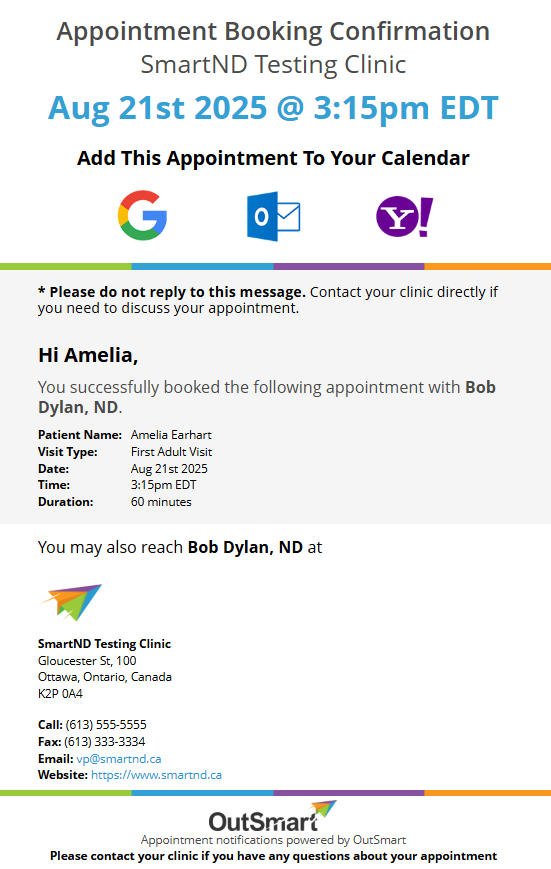
The first confirmation email confirms the appointment details.
Additional Email With Custom Message and Attachments
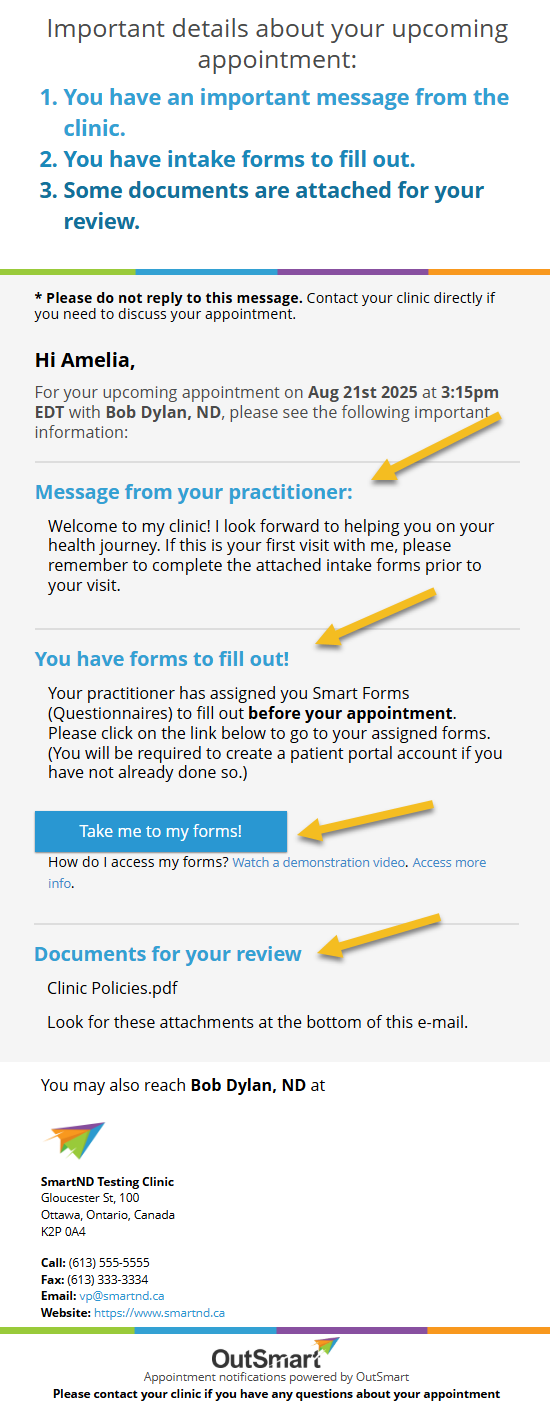
The second confirmation email includes the custom message
and any attachments.
The Confirmation “Package”
The Confirmation Email contains a “package” of information. A Confirmation Package includes:
- A custom confirmation message
- Smart Forms (optional)
- Attached documents (optional)
How to Send the Confirmation Email
The Confirmation Email is sent automatically for online bookings, as soon as the patient completes the booking.
For appointments that are manually booked in the calendar by practitioners and staff, there are 2 ways to send the confirmation email.
- At the same time as you create the booking, or
- After the booking is created.
Sending the Confirmation Email when creating the booking
When you create a booking in the calendar, the Confirmation Email is sent if you click Save & Send to save the event. Clicking plain Save books the appointment without sending anything. The Save & Send button only appears once a patient has been added to the event.
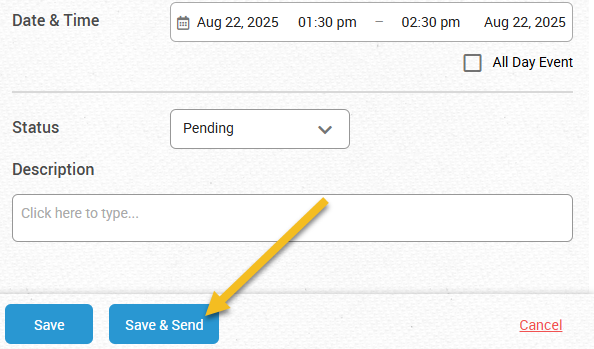
When manually booking an appointment, the confirmation package
is only sent if you click on "Save & Send".
Sending the Confirmation Email after the appointment is created
You may want to send the confirmation email after the appointment is created, because nobody clicked Save & Send when the appointment was created, or because the patient says they did not receive it.
Click once on the event in the calendar to open the event card for that booking. Click the Send Confirmation link to send the confirmation email to the email address on the patient’s record. Once a confirmation has been sent, the link reads Confirmation Sent (Send Again). Click (Send Again) to send it once more.
If the event card shows a yellow Emails stopped notice, emails to the patient’s address are stopped and the confirmation cannot reach them until emails are started again. See When Emails To A Patient Are Stopped.
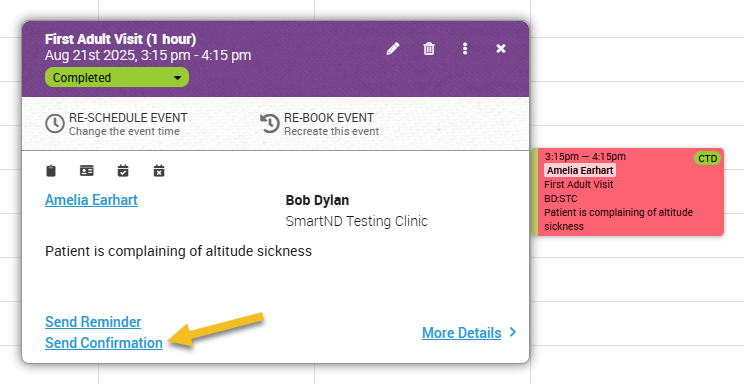
Click once on an event in the calendar to bring up the Calendar Card
Global vs. Event-Specific Confirmations
OutSmart offers two ways to configure a confirmation package:
- Global Confirmation Package: This package is set up under Global Confirmation Message, an item in the menu that opens from the gear icon at the top right of the calendar. It serves as the default for any appointment booked with you at your clinic. If you do not create a Global Confirmation Package, a basic, system-generated confirmation is sent.
- Event-Specific Confirmation Package: This package is configured in the Event Manager and allows you to create a confirmation that is unique to an individual event type. In the event type editor, the Booking Confirmation section has an Email Confirmation Message field, an Include SmartForms row for choosing intake forms, and an Include Attachments field for documents. Attachments are limited to 5 files or 5 MB in total, whichever limit is reached first.
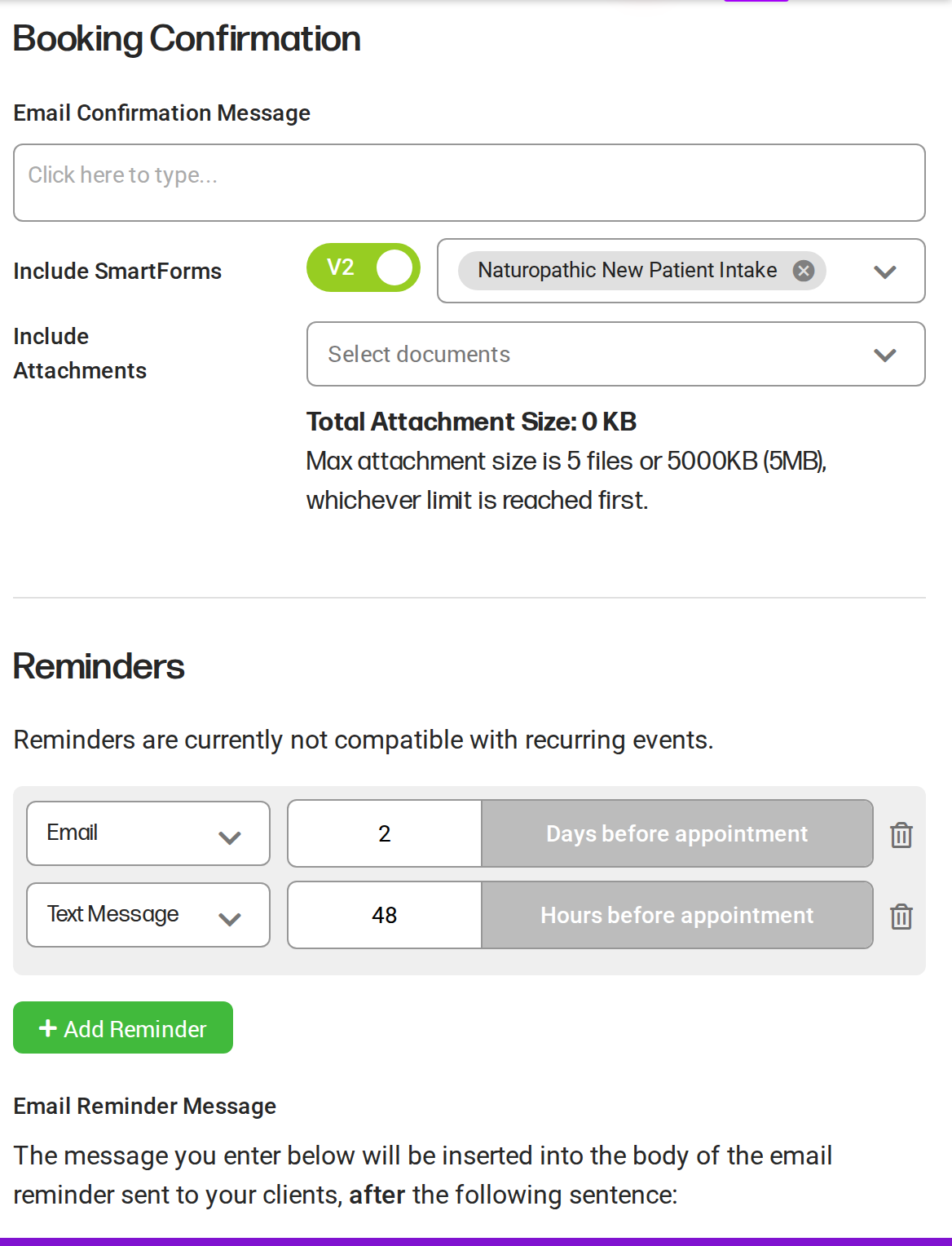
The Booking Confirmation section of the event type editor holds the event-specific message, forms and attachments.
How OutSmart Determines Which Package to Send
The system prioritizes event-specific settings.
- Check for Event-Specific Message: If the Email Confirmation Message field has been filled in for the event type in the Event Manager, OutSmart sends the Event-Specific Confirmation Package for that appointment.
- Check for Global Message: If the event type’s Email Confirmation Message field is empty, OutSmart sends the Global Confirmation Package instead, with the global message’s own forms and attachments. Any SmartForms V2 forms attached to the event type are still sent.
- Default Message: If there is no message in the Global Confirmation Package, a default system-generated confirmation message is sent.